Purchase Orders

Let the App Suggest

Purchase Orders → pick a supplier → Generate Suggested PO. For each product the app works out:

sales of the last 30 days × (supplier lead time + ideal stock days) − stock on hand − already on order

It then raises the quantity to the MOQ if needed.
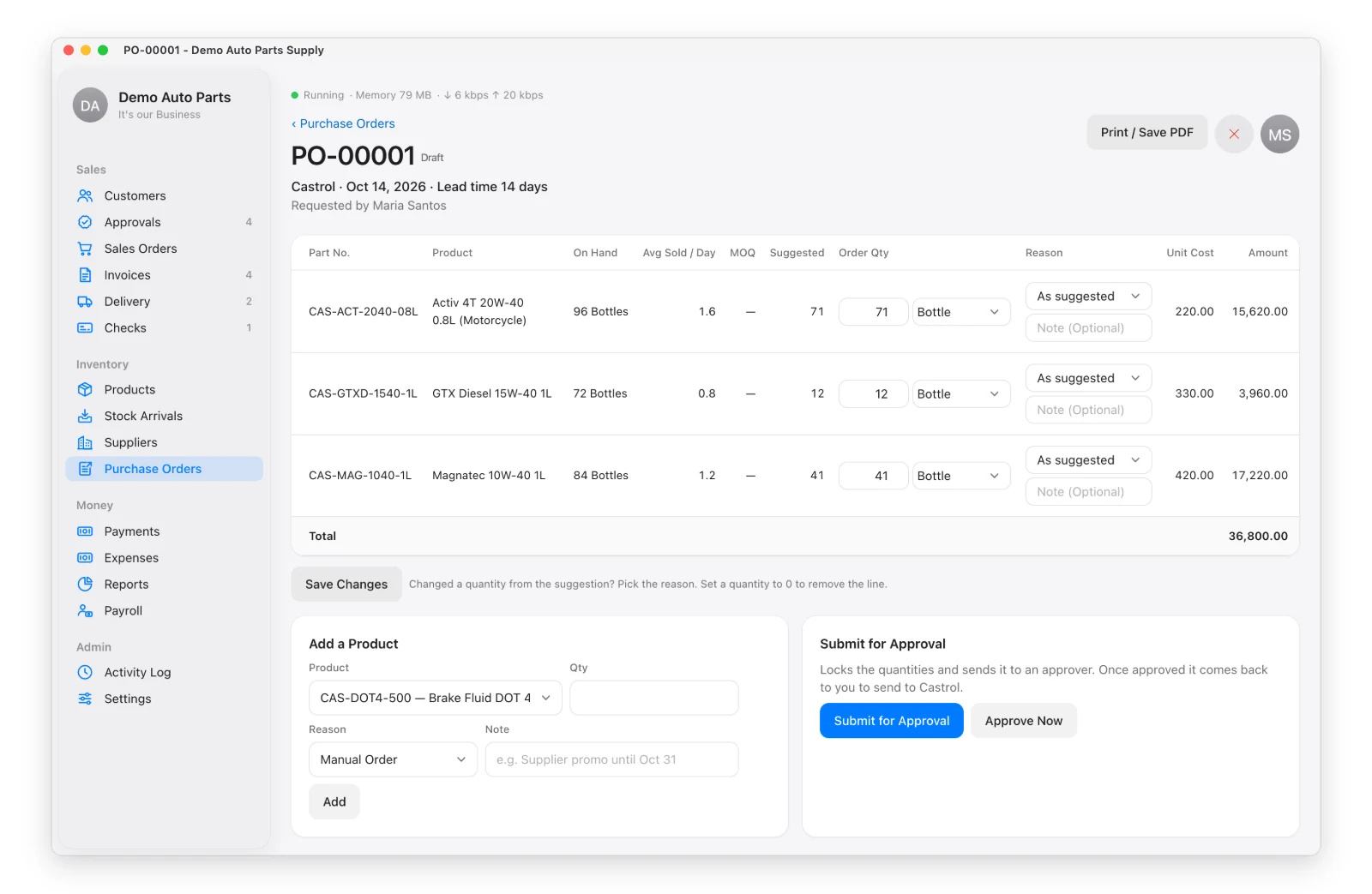
A few lines of a suggested purchase order

You can change any quantity before sending. Each change needs a reason: Promo, Special Discount or Accommodated Sales (a big customer order to cover).

Write One Yourself

Manual PO → pick the supplier or brand → type quantities next to the products you want → Create PO.

From Draft to Arrival

Draft → For Approval → Approved → Sent → Closed

  1. Submit it for approval.
  2. The approver approves or returns it for changes.
  3. Send it to the supplier and click Mark as Sent. Print it or save it as PDF first if you need to.
  4. When the goods arrive, click Create Stock Arrival — the lines are copied over.

See Also


Back to top

Not all features are available in every copy of Distribution App. Some features, such as Payment QR Code, Salesman Locations and Signed Delivery Receipts, are add-ons that must first be switched on in Settings › Features. Once the free trial ends, the app needs a license key or activation code. Distribution App runs on Mac and Windows; staff phones and tablets connect through the office computer on the same Wi-Fi network. Tax records, receipts and reports follow Philippine (BIR) rules and may not suit businesses in other countries. Screens in this guide show the Demo Company — all names, addresses and prices are made up — and may look slightly different from your version of the app. Features may change without notice. Learn more at github.com/totoantonio/DistributionApp. Copyright © 2026 totoantonio. All rights reserved.