Sales Orders
Write an Order
Go to Sales Orders → + New Sales Order.
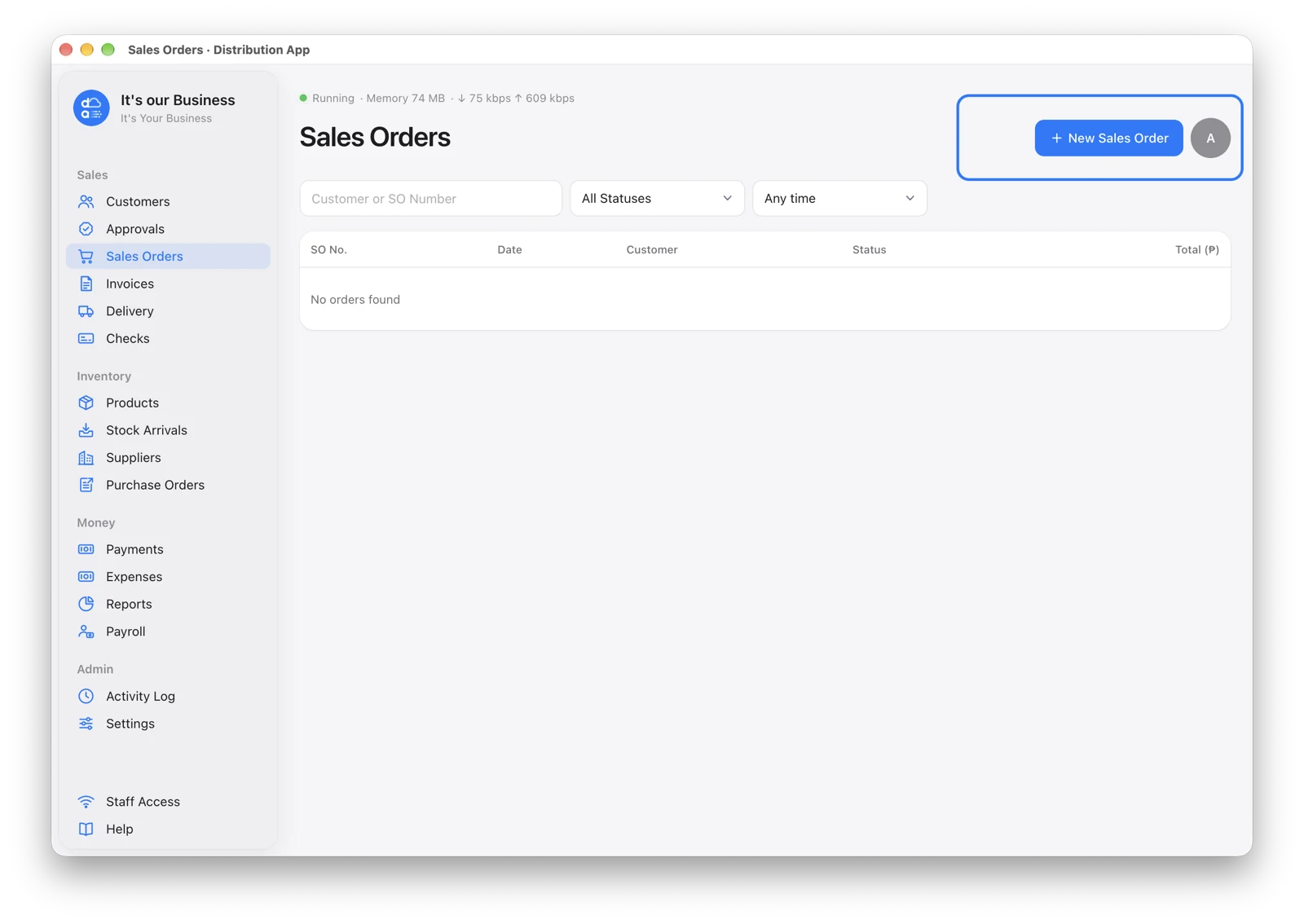
- Pick the customer and the order date.
- Add items — choose from the product list (grouped by brand) or search by name or part number.
- Type the quantity. Products sold by the case let you pick Case or the single unit, e.g. “2 Boxes (24 Cans)”.
- Add delivery instructions or notes if needed.
Prices fill in automatically: the SRP less the customer’s discount. You can type a different price if needed.
An order can never ask for more than you have in stock. If it does, the line turns red and the order can’t be saved until you lower the quantity.
Save or Submit
- Save Draft — keep it to finish later.
- Submit for Approval — send it to the approver.
Nothing is saved until you click one of these.
Order Status
| Status | Meaning |
|---|---|
| Draft | Still being written |
| For Approval | Waiting for the approver |
| Approved | Final — stock is taken and the invoice is made |
| Cancelled | Stopped; any stock is returned |
Change an Order
To edit a Draft or For Approval order, open it and click Edit. It opens the same form as a new order. Approved orders are final: extra items go on a new sales order. Only the delivery instructions can still change until delivery.
Proof of Order (Optional)
You can attach a signed PO or a photo when creating the order (phones offer the camera). If the admin turns on Settings → Features → Require Proof of Order, a salesman’s order stays a Draft until a file is attached.
No Signal? (Salesmen)
If the phone has no connection when you save, the order is kept on the phone and an orange “orders waiting to send” note appears. It sends itself once you’re back online. The main computer still checks stock, credit and prices when it arrives.
The New Sales Order page must already be open on the phone before the signal drops.