Try the Demo
Not ready to enter your own company details yet? Explore a complete sample business first — customers, products, orders in every stage, payments and reports.
Start the Demo
On the Welcome screen, click Explore.
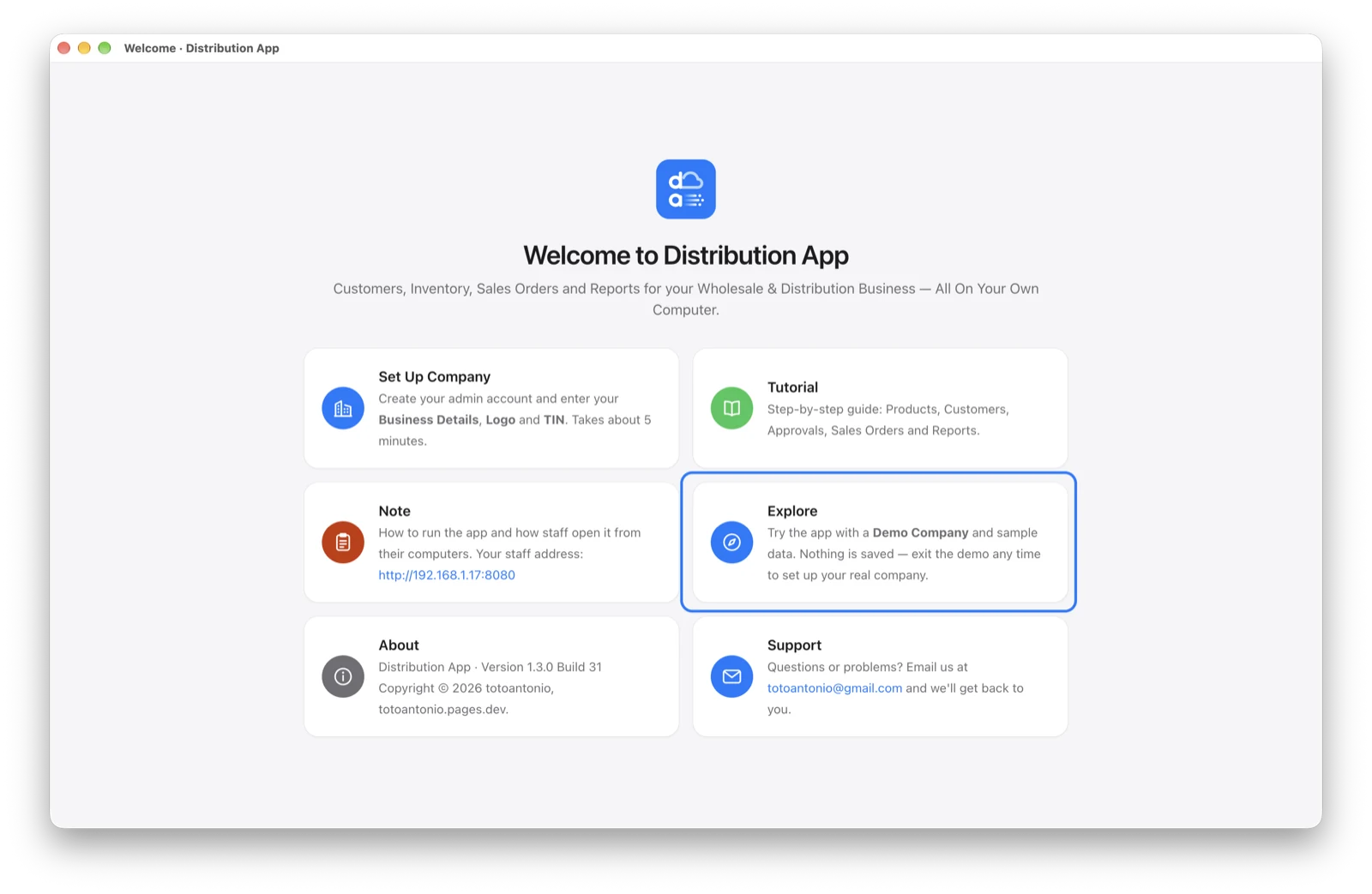
The app fills itself with Demo Auto Parts, a made-up distributor in Quezon City, and shows the sign-in screen.
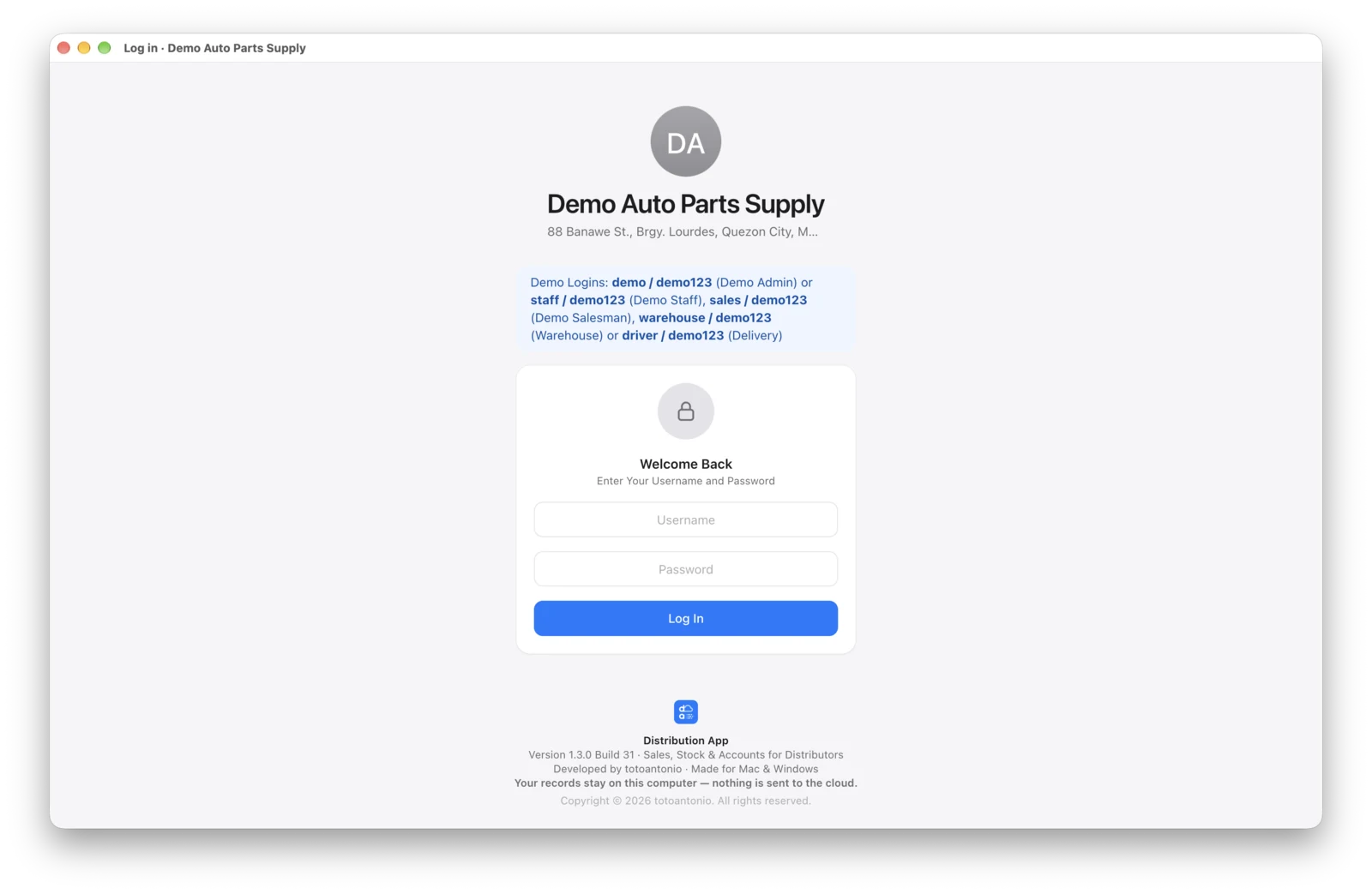
Demo Logins
Sign in as different people to see what each one sees. The password is demo123 for all of them. The sign-in screen lists them too.
| Username | Who | What They See |
|---|---|---|
| demo | Admin (owner) | Everything |
| staff | Office staff | Customers, orders, invoices, payments |
| sales | Salesman | Only their own customers and orders |
| warehouse | Warehouse staff | Packing, stock arrivals, stock adjustments |
| driver | Delivery | Only the Delivery page |
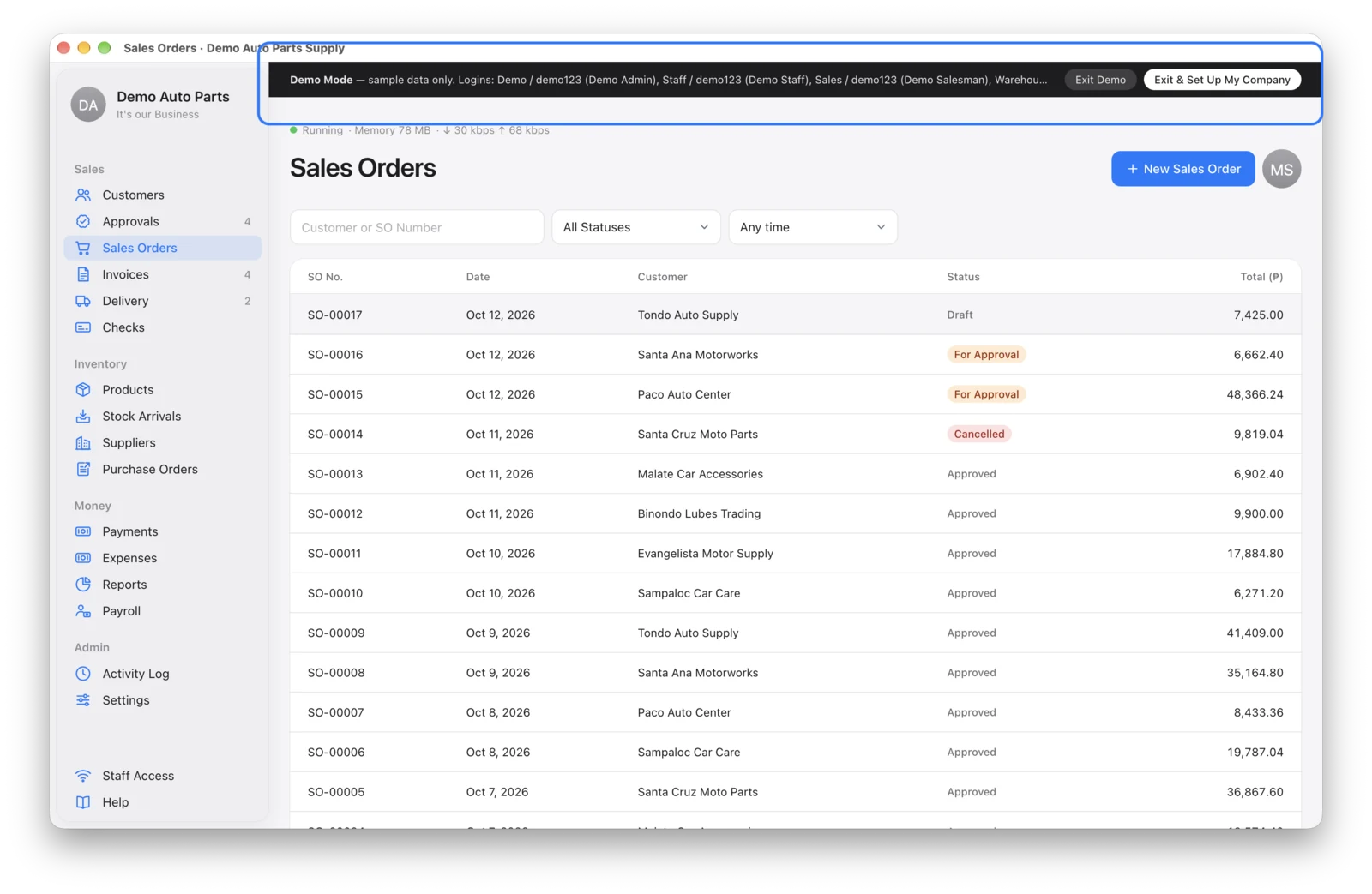
The dark bar at the top reminds you that you’re in the demo and lists these logins.
Leave the Demo
In the dark bar, click Exit Demo to go back to the Welcome screen, or Exit & Set Up My Company to go straight to setting up your real company. Either way, all sample data is removed.
Nothing you do in the demo is kept, so try anything — approve orders, record payments, print invoices.