Install on Windows
It takes about 2 minutes. You need Windows 10 or 11, 64-bit.
1. Download
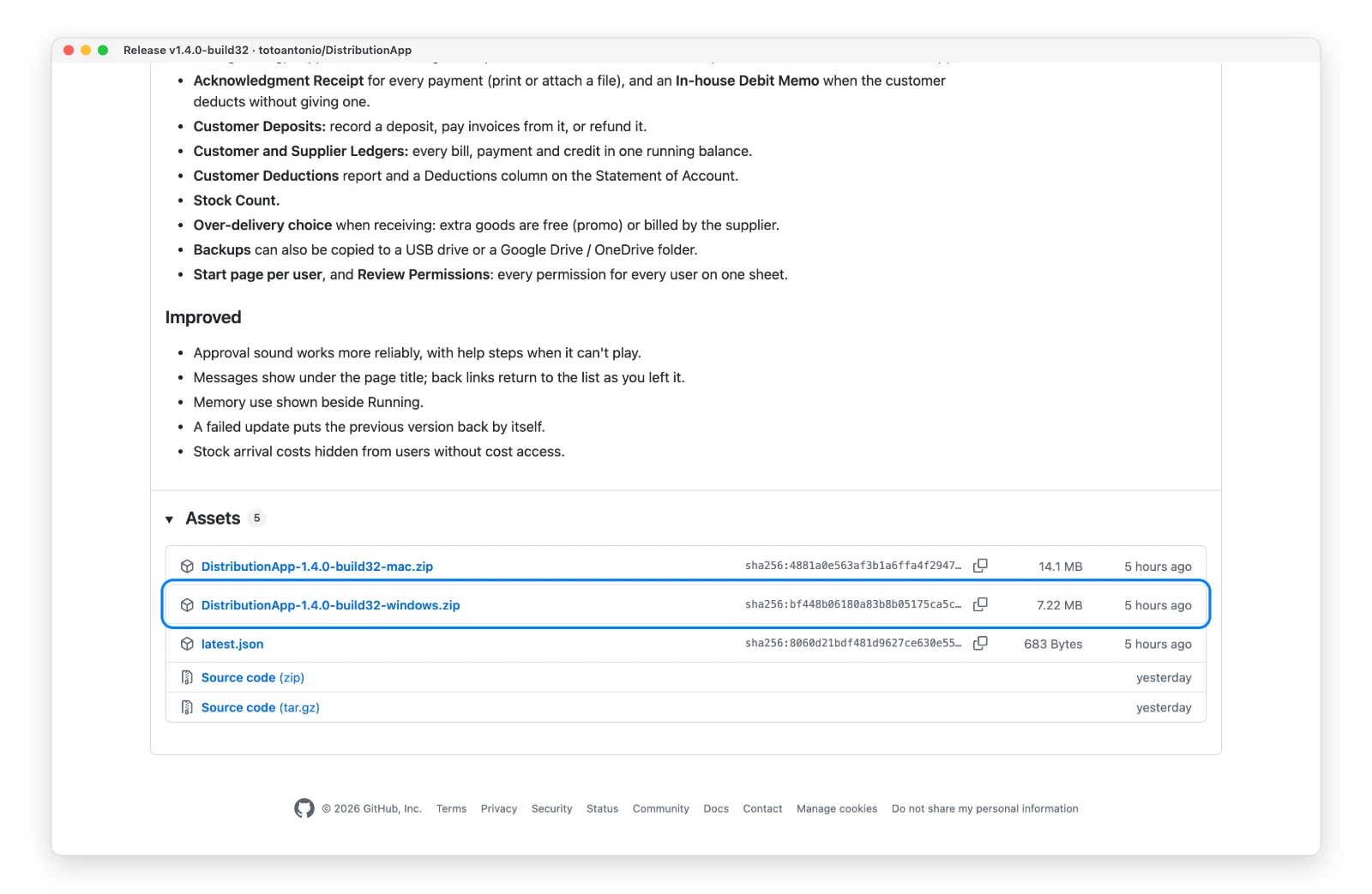
On the Distribution App page, click Download the Latest Version →. Then click the file ending in -windows.zip (for example DistributionApp-1.3.0-build31-windows.zip).
2. Extract
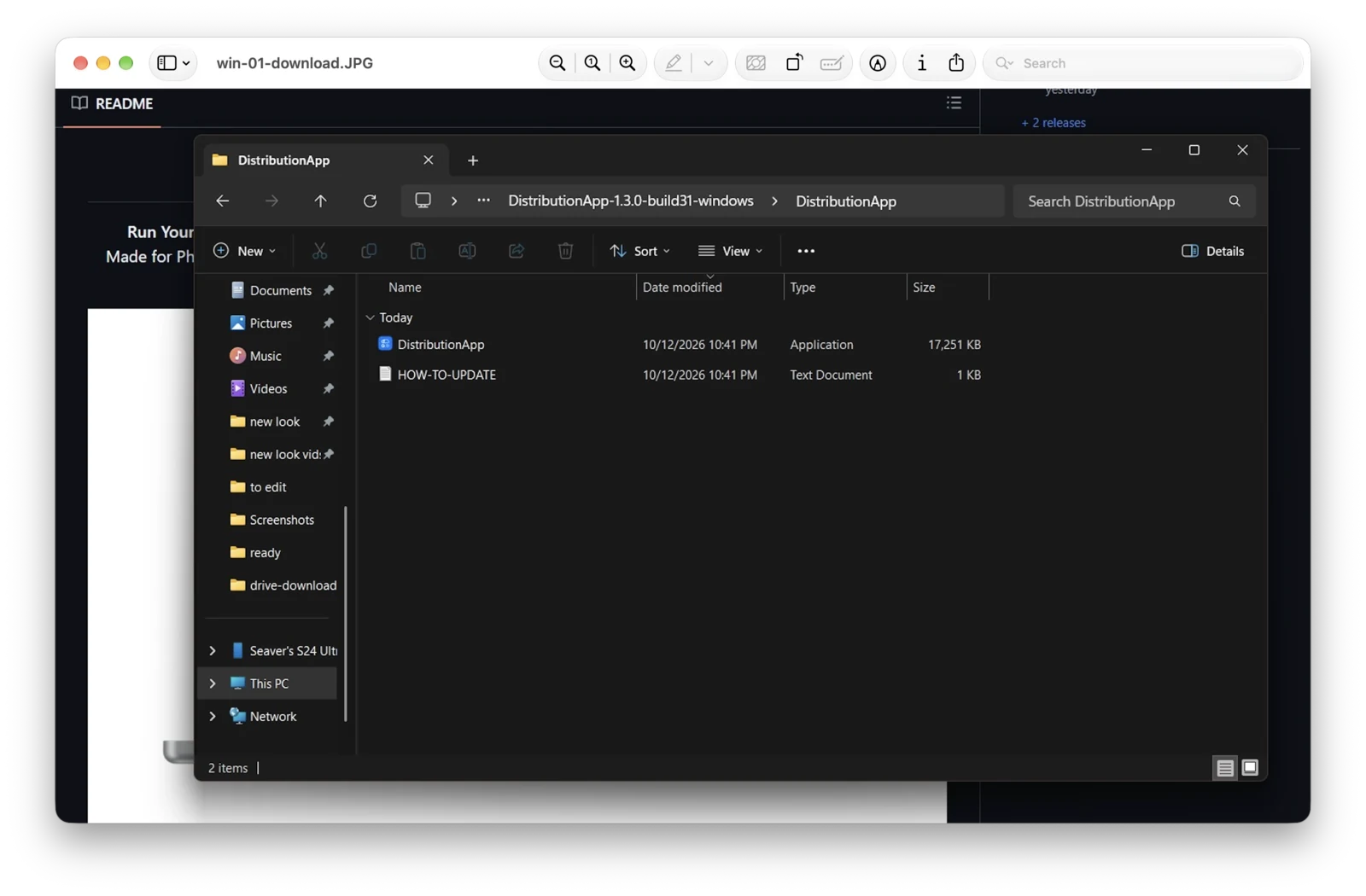
Right-click the zip → Extract All → Extract. Move the extracted DistributionApp folder somewhere permanent, for example C:\DistributionApp.
3. Open It
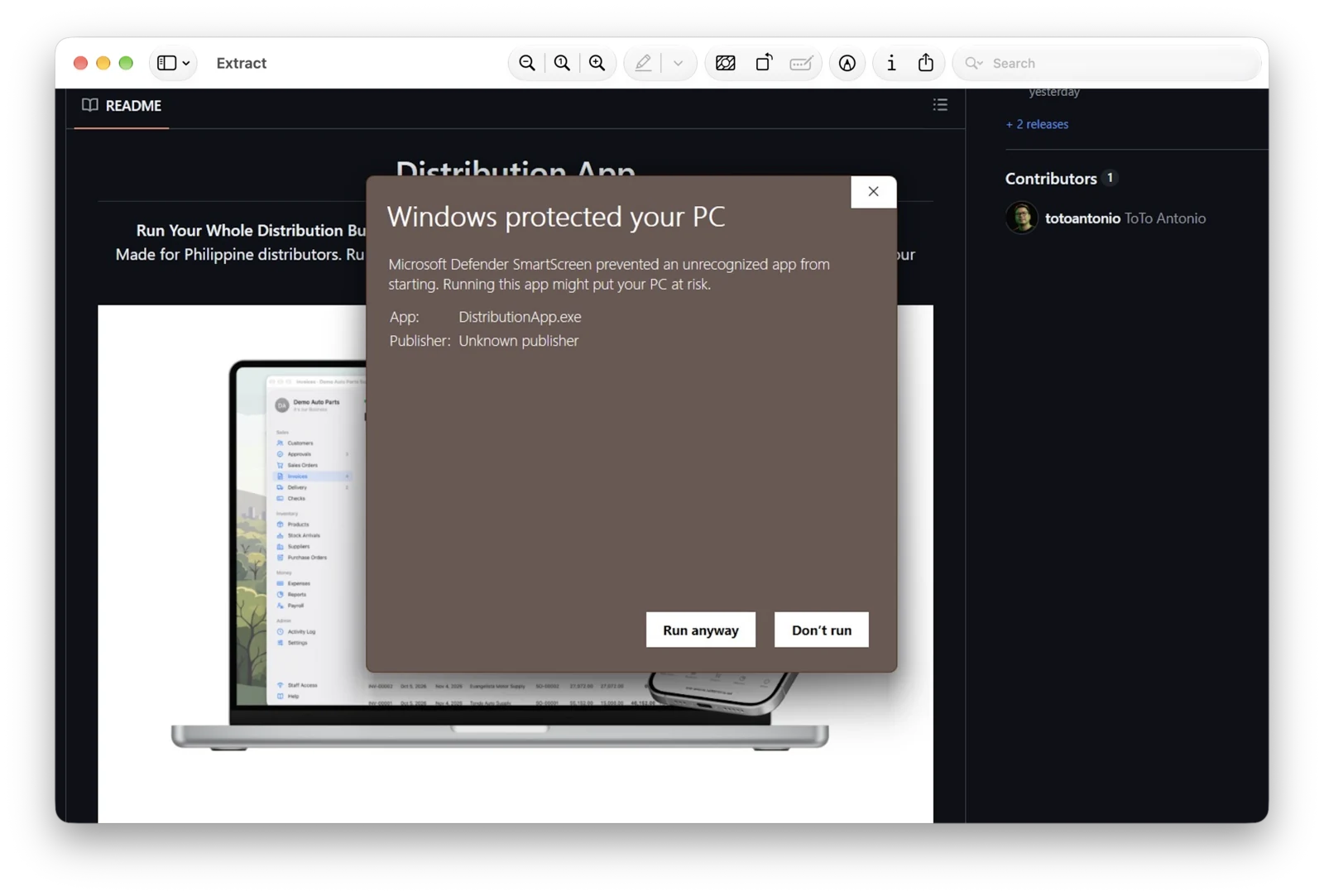
In the DistributionApp folder, double-click DistributionApp (Type: Application). The first time, Windows shows “Windows protected your PC” — click More info, then Run anyway.
4. Allow Staff to Connect
Windows Firewall asks whether to allow the app on networks. Tick Private networks and click Allow access — this is what lets staff phones and computers reach it.

5. Leave the Black Window Open
A small black window shows the app’s addresses. Keep it open the whole time you use the app — closing it quits the app for everyone, staff phones included. Minimize it instead. The app opens in Microsoft Edge on the Welcome screen.

Next: Try the Demo or Set Up Your Company.
Good to Know
- Quitting: Settings → Quit, or close the black window. A backup is saved either way.
- Your data lives in
%AppData%\DistributionApp— separate from the app, so updating never touches it.
If anything on this page looks different on your PC, email us and we’ll help.