Keep It Running
Staff can only open the app while the main computer is on and the app is running. Set this up once.
Start When the Computer Starts
Go to Settings → Start Up and turn on Start When Computer Starts. The app then starts by itself every time the computer is switched on — no need to open it.
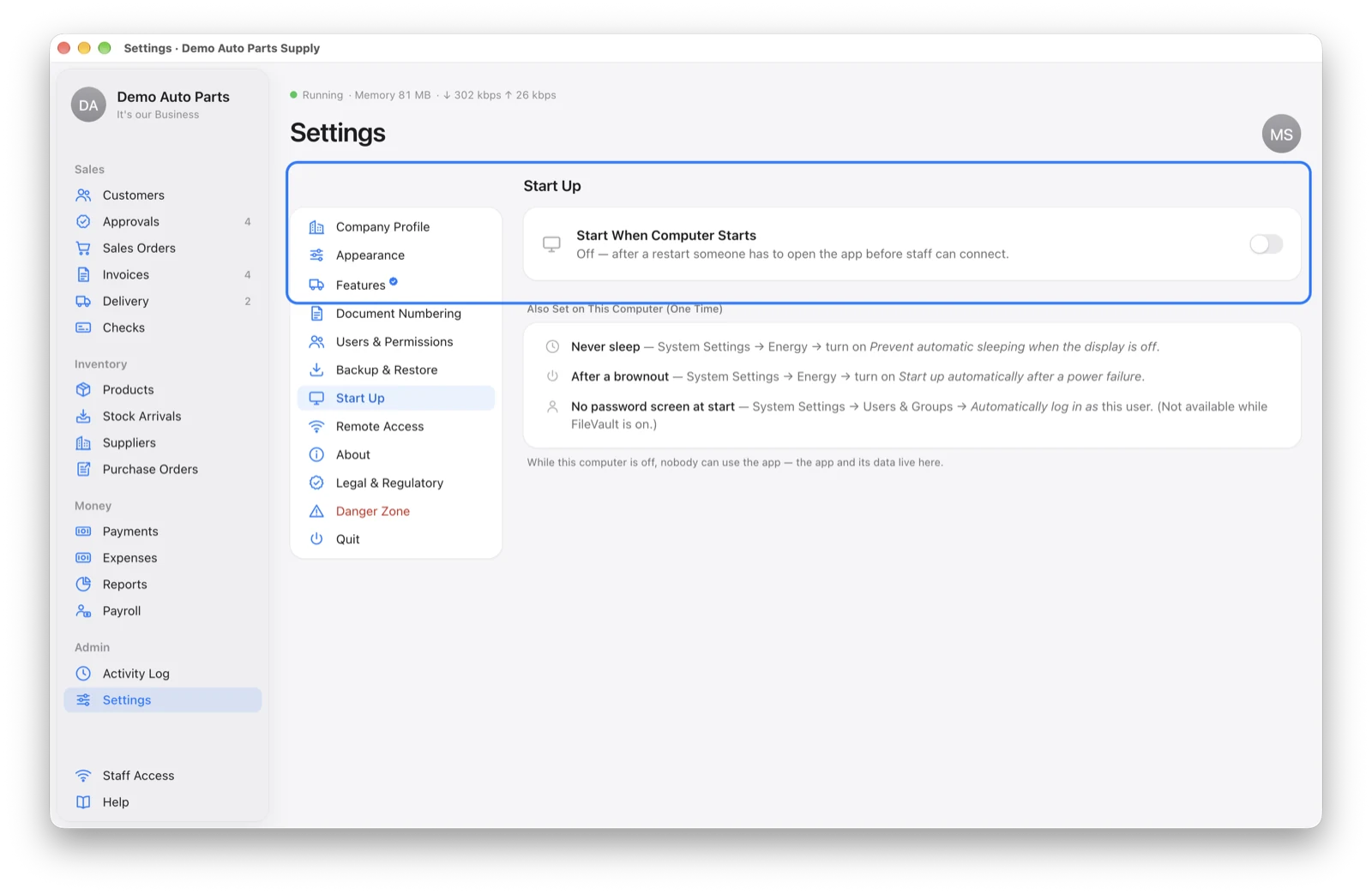
Three Computer Settings
The same page lists these for your computer. Do them once:
| Mac | Windows | |
|---|---|---|
| Never sleep | System Settings → Energy → turn on Prevent automatic sleeping when the display is off | Settings → System → Power → set Sleep to Never when plugged in |
| After a brownout | System Settings → Energy → turn on Start up automatically after a power failure | Set Restore on AC Power Loss to Power On in the computer’s BIOS (ask your technician) |
| No password screen at start | System Settings → Users & Groups → Automatically log in as this user (not available while FileVault is on) | Sign in automatically to this Windows account (ask your technician) |
Reserve the main computer’s address in your Wi-Fi router so it never changes, and connect it by cable or 5 GHz Wi-Fi for the fastest response on staff phones.