Stock Arrivals
A stock arrival is what the supplier delivered — and also their bill.
Receive Stock
Open the arrival (from a PO, or Stock Arrivals → New). For each line you’ll see:
- Ordered — what the PO asked for
- DR Qty — what the supplier’s delivery receipt says
- Received — type what you actually counted
Add the supplier’s invoice date and number, an optional note, then Receive Stock.
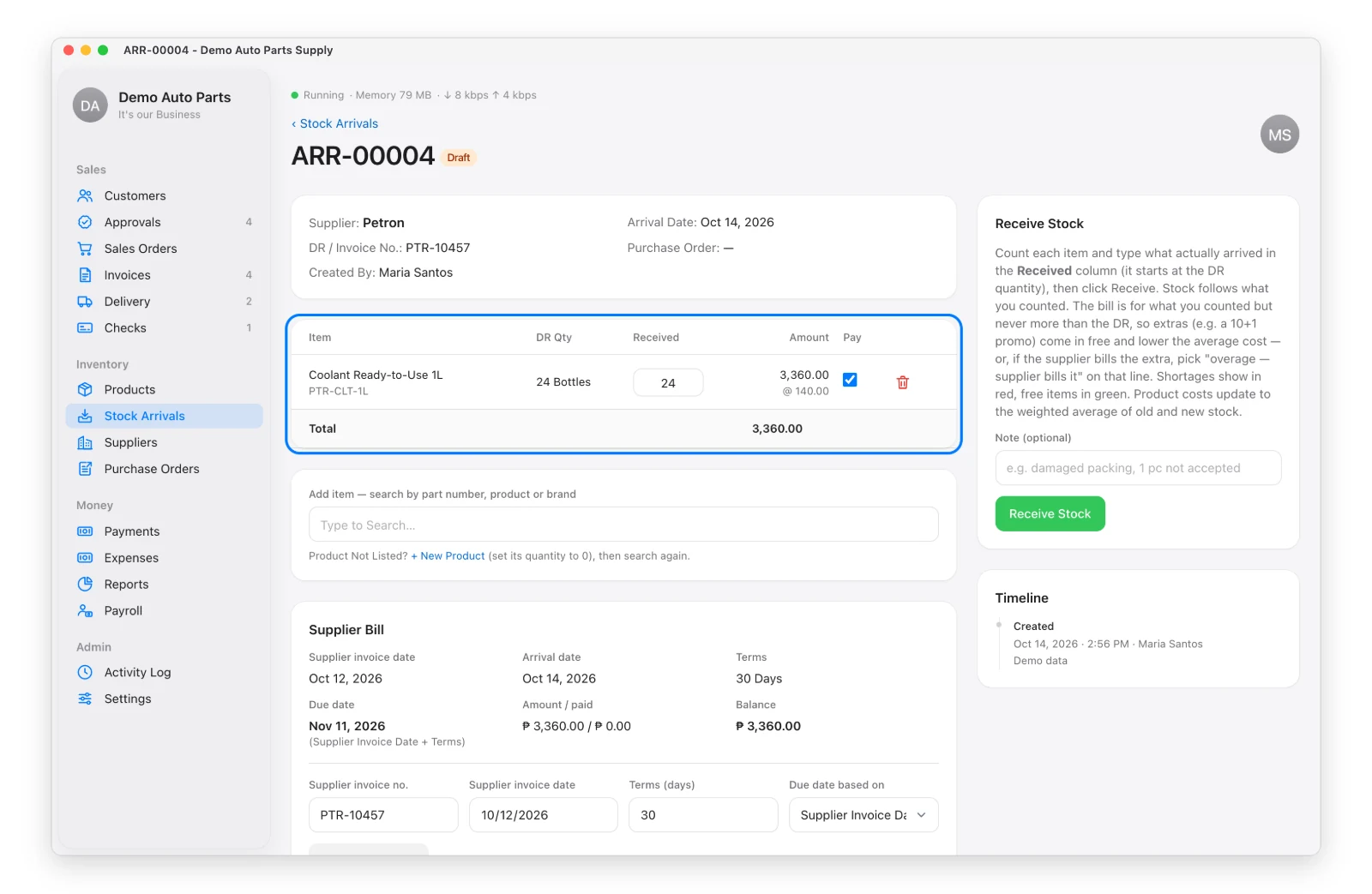
Stock goes up by what you counted, and each product’s cost becomes the average of old and new stock.
Short or Extra
| You Counted | What Happens |
|---|---|
| Less than the DR | Shown in red; you only pay for what arrived |
| More than the DR | Choose: free goods (promo, e.g. 10+1) or overage the supplier bills |
Lines that weren’t on the PO get a red dot so they’re easy to question.
Hold a Line From Payment
Untick Pay on a line to keep it out of payments until it’s sorted out with the supplier. It’s still owed.
Undo Receive (Admin)
Received by mistake? Undo Receive (reason required) takes the stock off and returns the arrival to Draft — only if nothing was paid on it and the stock hasn’t been sold.