Receive a Payment
One Payment, Several Invoices
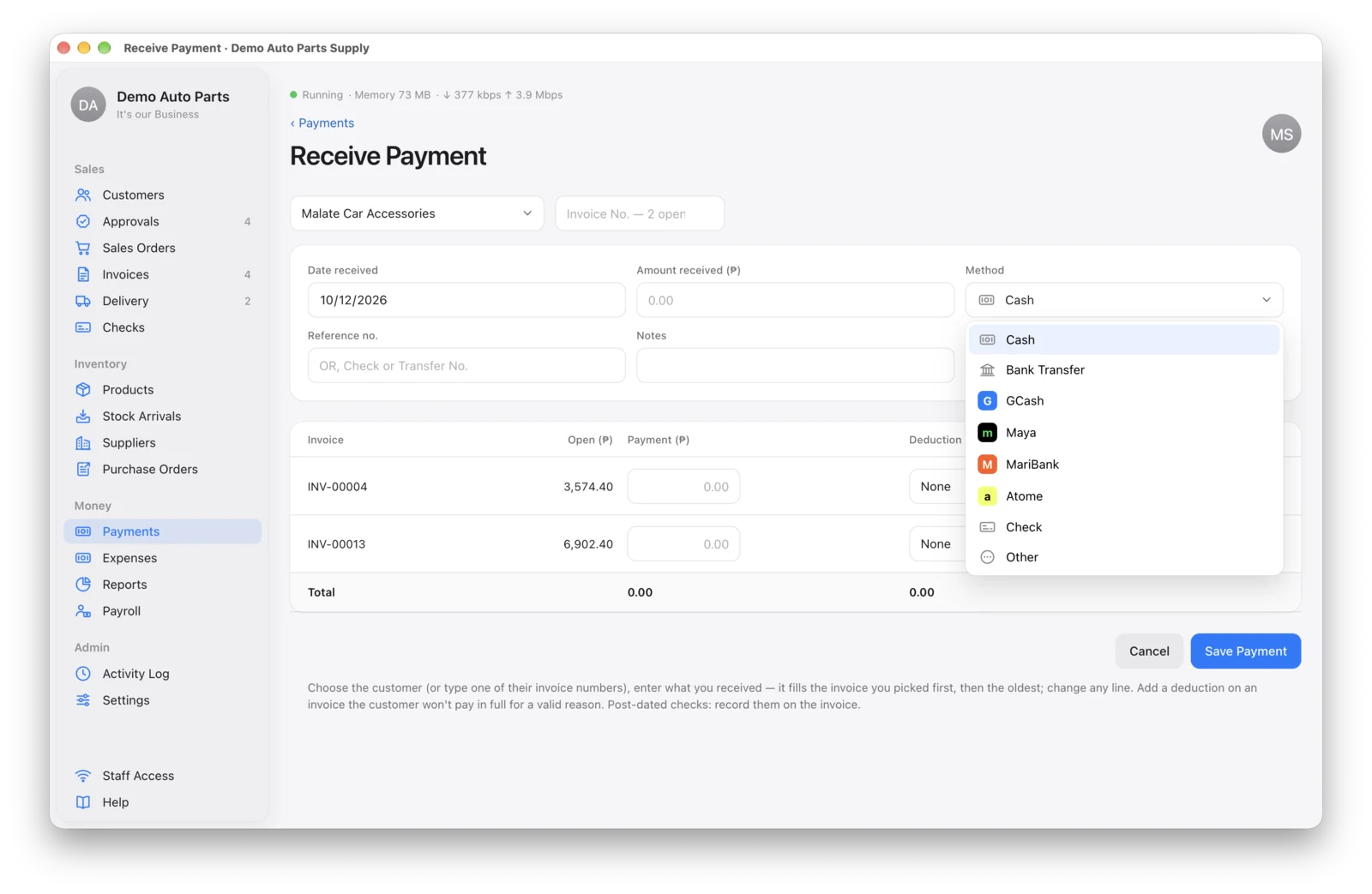
Go to Payments → Receive Payment.
- Pick the customer (or type an invoice number). Their open invoices appear, oldest first.
- Type the amount received. It’s spread over the invoices, oldest first. Change the split if the customer asks.
- Choose the method — Cash, Bank Transfer, GCash, Maya, MariBank, Atome, Check or Other — and type the reference no. (OR, transfer or check number). The reference is required.
- Click Save Payment.
The payment gets its own number (PAY-00001). An invoice that isn’t fully paid shows Partial with what’s still owed.
You can attach one photo or PDF to the payment, such as a deposit slip or a BIR Form 2307.
Pay One Invoice
On an invoice page you can also record a payment for just that invoice. A payment can never be more than the balance.
The Acknowledgment Receipt
Each payment has a printable Acknowledgment of Payment (A4): who paid, the amount in words, the invoices it covered and who received it.
This is not an Official Receipt. An Official or Collection Receipt must be a BIR-registered form — keep issuing yours as usual.
Removing a Payment
Only the admin can remove a payment, with a reason. It’s kept in the Activity Log.