Connect Your Staff
Staff, salesmen and drivers use the app in their phone’s or computer’s web browser. You give each person a login, and they open the app’s address.
1. Add Each Person
Go to Settings → Users & Permissions and add a user for each person, with the role that fits: Staff, Salesman or Delivery. Tick what each staff member may do. (A full page on users and permissions is coming in the Settings chapter.)
2. Give Them the Address
Open Staff Access (bottom of the sidebar). It shows the address to open — with a QR code, Copy Address and Share.
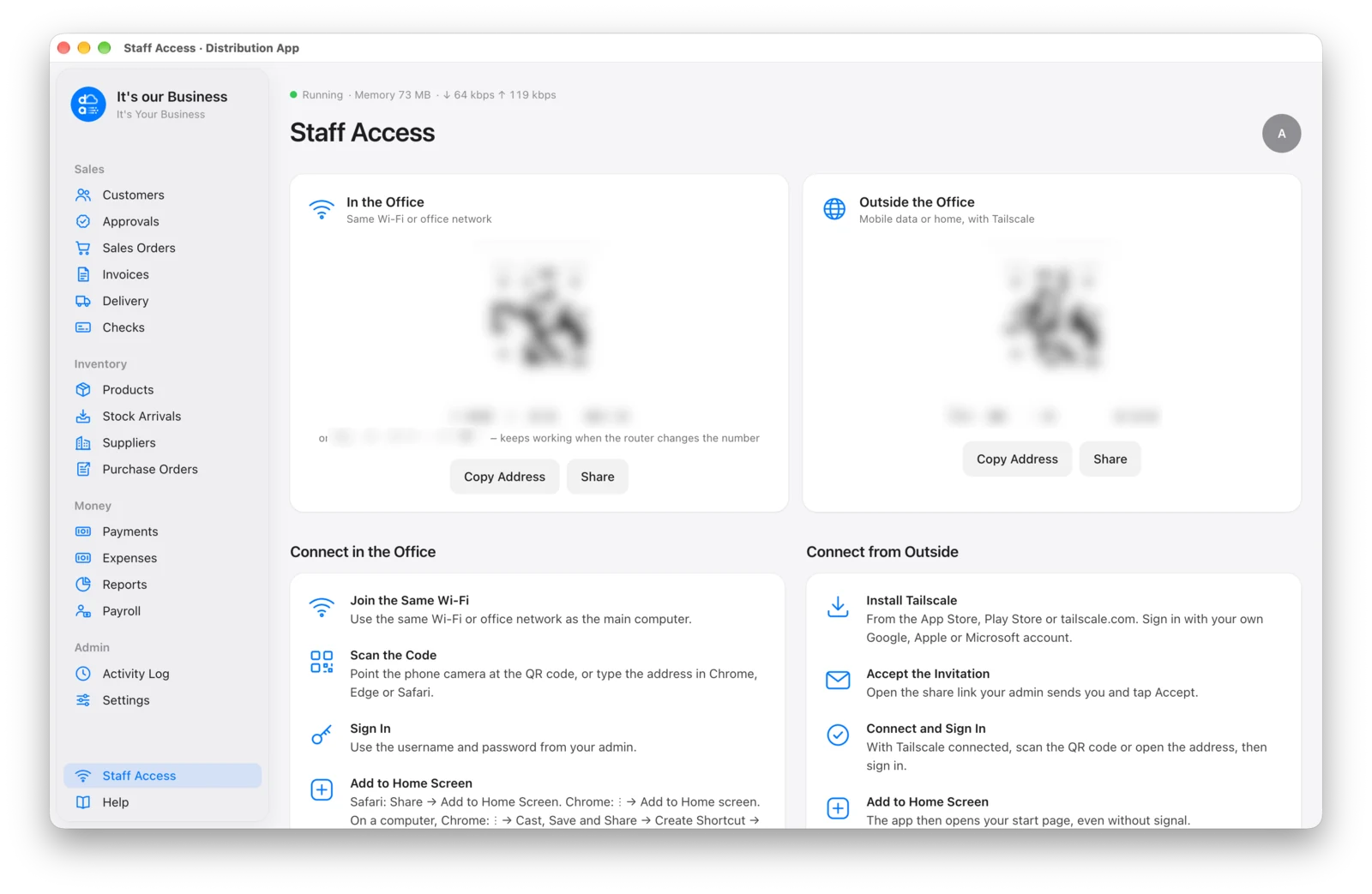
- In the Office — works on the same Wi-Fi or office network. No internet needed. Under the address is a second one ending in .local — it keeps working even when the router changes the number.
- Outside the Office — appears after you turn on Settings → Remote Access (uses a free Tailscale account). Salesmen can then use the app on mobile data.
3. Open It on a Phone
On the phone, open the camera and point it at the QR code, then tap the link.
Sign in with the username and password you gave them.
4. Add It to the Home Screen (iPhone)
In Safari, tap Share → Add to Home Screen → Add. The app then opens full screen from its own icon, like any other app.

On Android, open the browser menu (⋮) → Add to Home screen.
The main computer must be on and the app running for staff to connect — see Keep It Running.